Gaming Gear · Explainer
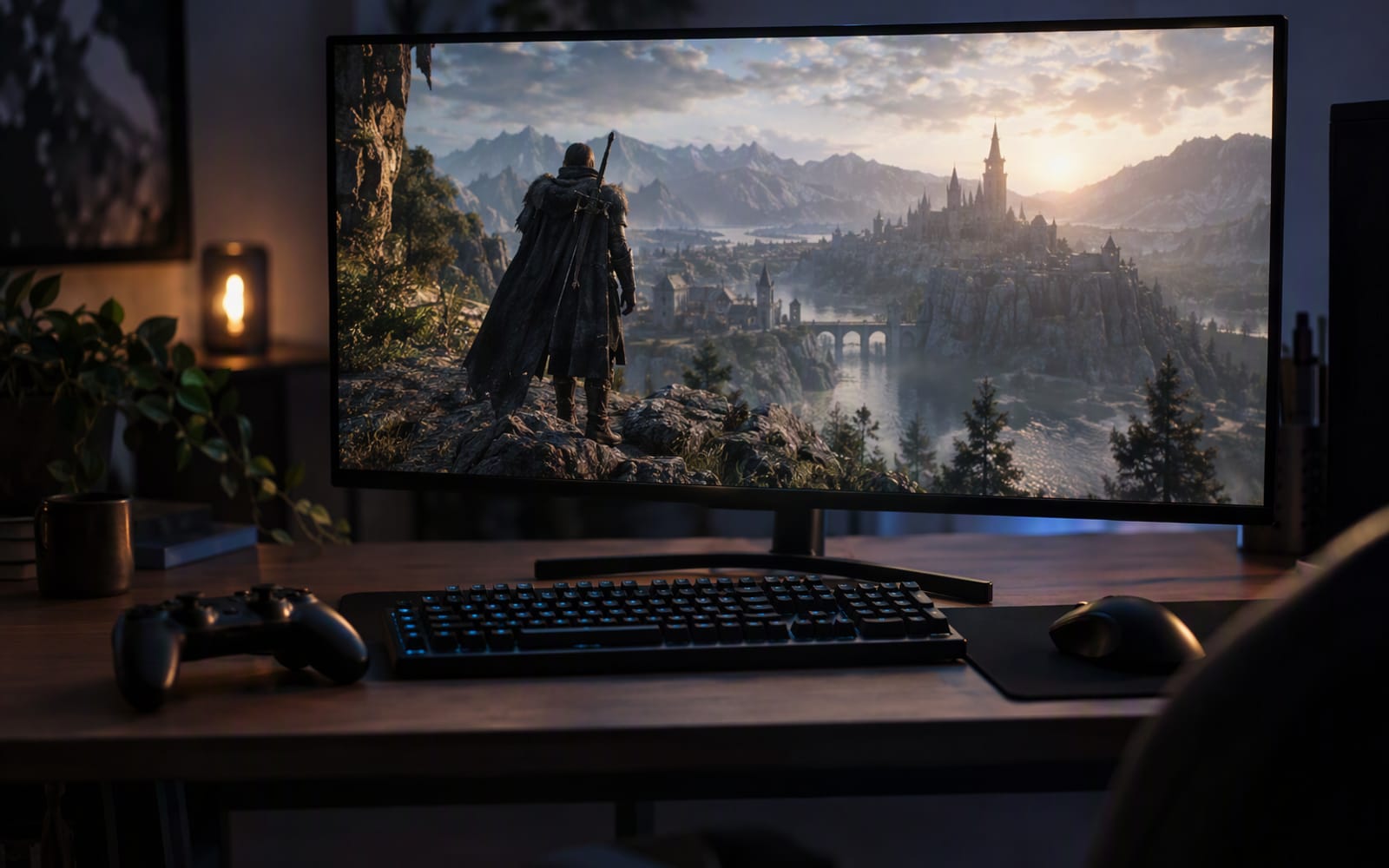
Start with a specific room. A bedroom desk with one monitor on it, which has to do double duty: coursework and video calls during the day, games in the evening, and a streaming service in bed at the end of it. The monitor is the most expensive thing on the desk and the one component that will outlast everything else — most people keep a monitor through two graphics cards and at least one new PC.
That is the argument for thinking carefully, and for not overthinking it: a good monitor bought now will still be good in five years.
What refresh rate actually does
A monitor refreshes its image a fixed number of times per second. At 60 Hz it draws a new image 60 times a second; at 144 Hz it draws one 144 times a second. The frames come from your graphics card, and the monitor displays whatever it has most recently received.
This is where most buying advice skips a step. Refresh rate is the monitor’s capability. Frame rate is your graphics card’s output. They are different numbers, and a high refresh rate only produces the smoothness people describe when the graphics card is producing frames fast enough to keep up.
So the honest first question is not “do I want 144 Hz”. It is “what frame rate does my machine actually produce in the games I play”.
- If you are already running well above 60 frames per second in the games you care about, a high-refresh panel converts that into something you can see. This is the case where the upgrade is obvious.
- If you are hovering around 60 frames per second, a high-refresh panel still helps, but mostly by removing tearing and stutter rather than by making motion dramatically smoother. That is worth having, but it is not the transformation people describe.
- If you are often below 60 frames per second, a new monitor will not fix it. Nothing about the display makes your graphics card faster, and a monitor that can show 144 images a second cannot invent frames that were never rendered.
Rule of thumb. Buy the refresh rate your graphics card can feed. A 144 Hz panel driven at 50 frames per second looks worse than a 60 Hz panel driven at a locked 60, because the mismatch produces uneven pacing the eye notices immediately.
Resolution versus refresh rate, and why 1440p is the productivity sweet spot
Every monitor budget is a pie, and resolution and refresh rate both come out of it. Spending more on one means spending less on the other, plus less on the panel quality that determines colour and contrast.
1080p at 24 inches remains a perfectly sharp combination at normal desk distance. Text is crisp, games are easy to drive, and it leaves the largest share of the budget for refresh rate and a better graphics card. Its limitation is not sharpness — it is space. On a 1080p panel you fit noticeably less on screen at once, and if the monitor is your only display for eight hours of work, that becomes a daily tax.
1440p at 27 inches is the balance most people should aim at. It gives you meaningfully more desktop real estate for documents, timelines and browser windows, it is sharper for text, and it is still far easier to drive than 4K. For a desk used for work all day and games at night, this is the resolution that serves both jobs without a clear compromise. The cost is that it asks more of your graphics card, and in demanding games you may end up lowering settings to keep frame rates up.
4K is excellent for productivity but genuinely hard to drive in fast games without accepting a lower frame rate. For a single-monitor casual setup, it is the wrong priority.
Adaptive sync is the feature you should actually insist on
Adaptive sync lets the monitor adjust its refresh rate to match the frame rate your graphics card is delivering, moment by moment. Instead of the display running at a fixed rate while the graphics card struggles to hit it, the two stay in step.
The practical benefits are the ones that matter most to a casual player. There is no screen tearing — the horizontal split you see when display and graphics card disagree — and no need for the input lag that traditional vertical sync introduces to prevent it. Motion also stays evenly paced when a game drifts between frame rates, instead of producing visible stutter.
Both major graphics card vendors support adaptive sync, and a monitor that works with both is the safer buy. Filter for it before anything else, because it improves the experience at every frame rate, not just high ones.
IPS contrast in a dark room
There is one trade-off buyers discover after the fact, and it is worth knowing in advance.
IPS panels, which dominate this price bracket and are the right choice for a monitor that doubles as a workspace, have limited native contrast. In a bright room this is invisible. In a dark room, the deepest blacks look like dark grey, and scenes set at night — which is a lot of games — lose some depth.
That is not a reason to avoid IPS. It gives you the best colour accuracy and viewing angles for the money, and it is what makes a monitor comfortable to work on. It is a reason to set expectations: a bias light behind the monitor, or simply not sitting in complete darkness, closes most of the perceived gap. If you want deep blacks in a dark room, the alternatives are a VA panel, with better contrast but slower transitions, or an OLED, which is excellent and costs considerably more.
Our picks
| Model | Panel | Resolution | Adaptive sync | Best for |
|---|---|---|---|---|
| LG 27GP850-B | 27-inch IPS | 1440p | Works across both GPU brands | A single monitor for work and play |
| AOC 24G2 | 24-inch IPS | 1080p | Supported | A first gaming monitor on a small desk |
LG 27GP850-B is the model most buyers should start from, because it resolves the resolution-versus-refresh argument rather than picking a side. Based on published specifications it is a 27-inch 1440p IPS panel with a high refresh rate, adaptive sync that works across both graphics card brands, and a height-adjustable stand. What you give up is contrast in a dark room, limited HDR performance, and desk space — the stand is wide, so measure before you commit. It also assumes a reasonably current graphics card.
AOC 24G2 is the cheapest sensible way to get a high refresh rate, and the right answer when the monitor is mainly for games and the budget is tight. 1080p at 24 inches is still sharp at normal viewing distance, the height-adjustable stand is unusual at this end of the market, and the money you do not spend here can go towards the graphics card that actually raises your frame rate. What you give up is desktop space, plus modest contrast and colour accuracy that benefits from adjustment.
What to ignore
- Response time figures. Published numbers in this category are measured under conditions that do not resemble real use. Every panel discussed here is fast enough for casual play.
- HDR support on a mid-range panel. Without local dimming it cannot display high dynamic range content properly. It is a checkbox, not a feature.
- Refresh rates you cannot drive. A number you never reach is not a feature you own.
When the honest answer is do not buy anything
If you are happy with your current monitor and your games run comfortably, a new one will not change much. Monitors are the component people most often upgrade for a feeling rather than a problem, and the money is frequently better spent elsewhere in the machine.
The clearest case for waiting is a weak graphics card. A high-refresh monitor paired with hardware that cannot produce frames is an expensive way to look at the same experience with slightly less tearing. Upgrade the graphics card first, see what frame rates you actually reach, and then buy a monitor that matches them.
Our picks
These are the models we would shortlist for the scenarios in this article. Each entry shows the published specification highlights, what the product is genuinely good at, and what you give up.
LG 27GP850-B
LG
1440p at a high refresh rate is the sweet spot for most people: sharp enough for text, smooth enough for games, and cheaper to drive than 4K. This is the model most buyers should start from.
What it does well
- Excellent balance of sharpness and smoothness
- Good colour out of the box
- Adaptive sync works across both GPU brands
What to accept
- IPS contrast is average in dark rooms
- HDR performance is limited
- Stand is wide
Best for: Competitive gaming · Mixed work and play · Single-monitor desks
Published specs: 27-inch 1440p IPS display; High refresh rate with adaptive sync; Fast pixel response for its panel type; Height-adjustable stand.
Last checked: 2026-09-26
AOC 24G2
AOC
The cheapest sensible way to get a high refresh rate. 1080p on 24 inches is still perfectly sharp at normal viewing distance, and the price leaves budget for a better GPU.
What it does well
- Very affordable
- Good motion clarity for the price
- Height-adjustable stand at a budget price
What to accept
- 1080p limits desk space for productivity
- Contrast is modest
- Colour accuracy needs tweaking
Best for: First gaming monitor · Small desks · Budget builds
Published specs: 24-inch 1080p IPS display; High refresh rate with adaptive sync; Height-adjustable stand; VESA mounting support.
Last checked: 2026-09-26
Frequently asked questions
Will I notice 144Hz if my games only run at 60 frames per second?
You will notice the desktop, the mouse cursor and any interface animation, because those really do run faster. In games you will mostly notice the absence of tearing and stutter rather than raw smoothness, because the panel is refreshing more often than the game is producing new frames. That is a real benefit, but it is not the dramatic leap people describe when they talk about high refresh rates.
Is 1440p worth it over 1080p for a casual player?
If the monitor also has to be your workspace, yes. The extra vertical resolution is what lets you keep a document, a browser window and a chat panel open at the same time without everything feeling cramped, and that matters for far more hours of the week than gaming does. If the monitor is purely for games and the budget is fixed, spending the difference on a stronger graphics card is usually the better trade.
Do I need a new graphics card to use a high-refresh monitor?
You need a graphics card that can output the resolution and refresh rate over the right cable, and you need one that can render enough frames to make the refresh rate meaningful. Older cards often support the display but cannot feed it in modern games. Check the output standard your card supports before buying, because a high-refresh monitor on an older connection may run at a lower refresh rate than the panel is capable of.
What about 240Hz or higher?
Those panels exist and they are aimed at competitive players whose frame rates genuinely reach those numbers. For casual play they are usually a poor use of budget, because the money spent on refresh rate is money not spent on resolution, panel quality or the graphics card that would actually raise your frame rate. Buy the refresh rate your hardware can feed.
Related
Gaming
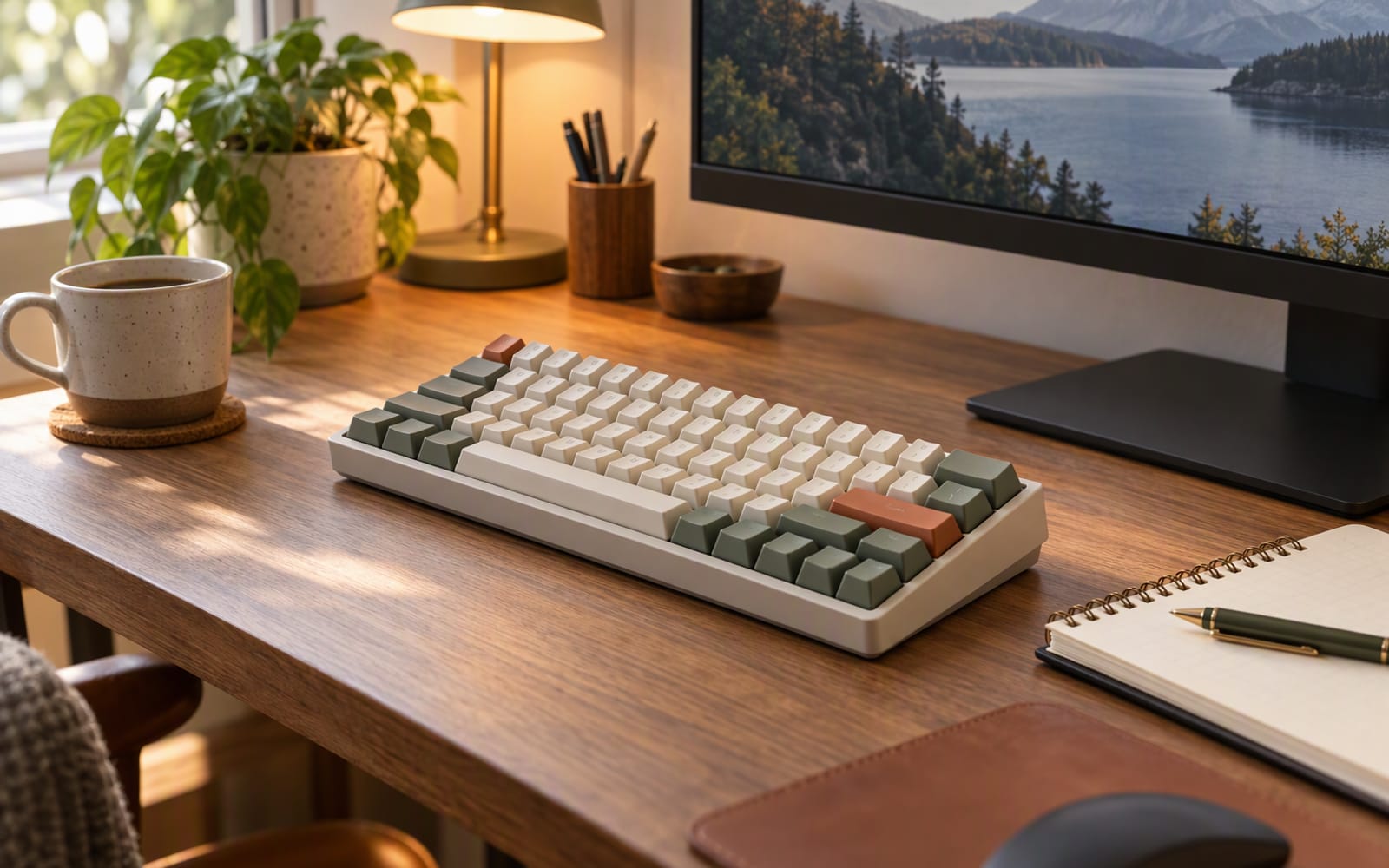
Best Budget Mechanical Keyboards for Work and Play
One desk has to handle spreadsheets by day and shooters by night. Here is how to choose a budget mechanical keyboard that does both jobs well.
Gaming
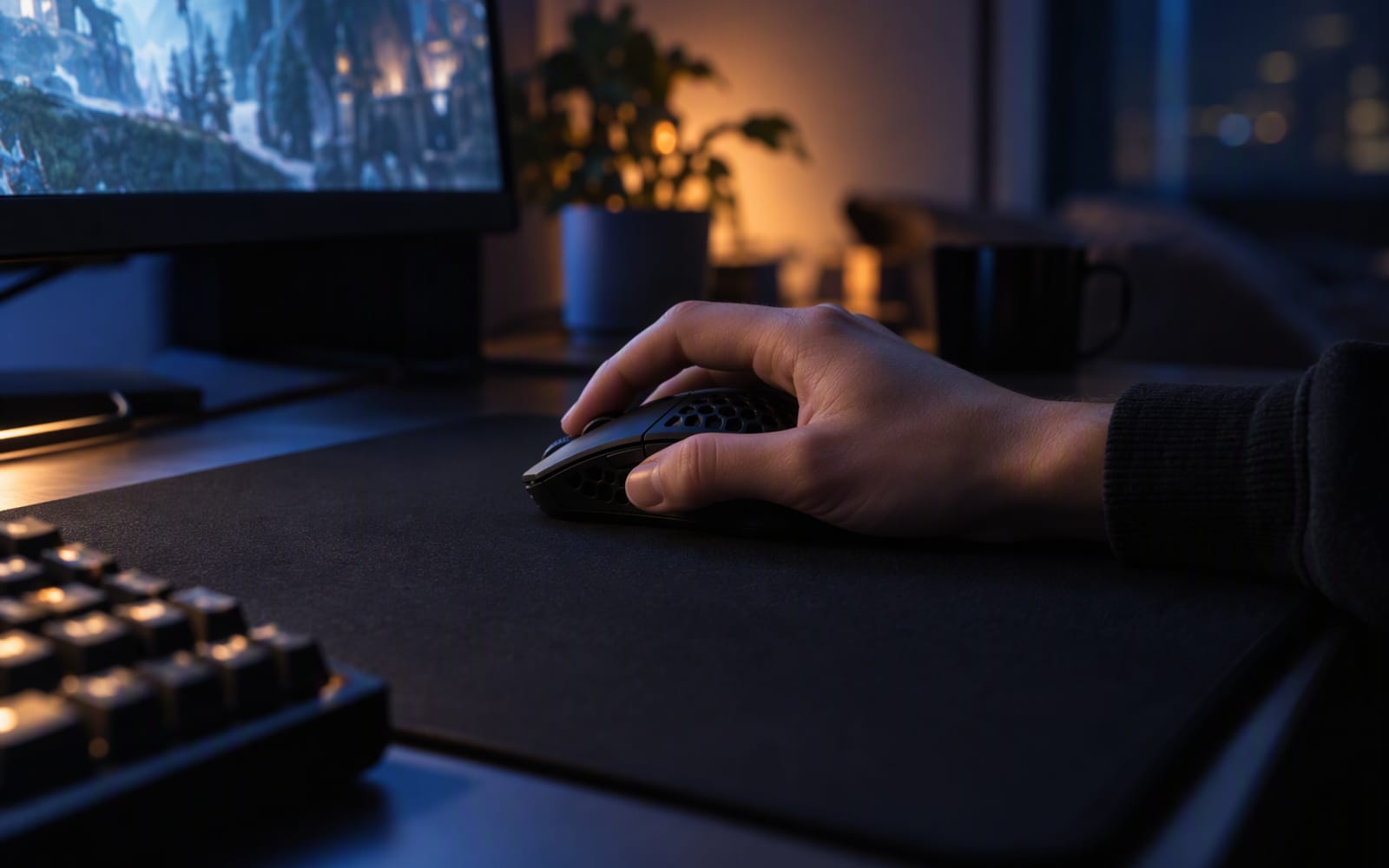
Gaming Mice for Small Hands: What to Look For
Hand size and grip style decide whether a gaming mouse feels right. Sensor specs rarely do. Here is how to choose a small mouse without overpaying.
Gaming
Best Controllers for PC Gaming in 2026
Native Windows support, hall-effect sticks and back buttons matter more than looks. Here is how to pick a PC controller that survives years of play.